一、vue的Element组件库
官网:https://element.eleme.cn/#/zh-CN
1.1安装
推荐安装方法:
首先要进入项目目录
cnpm i element-ui -S或
npm i element-ui -S
1.1.2 CDN安装
直接引入无需安装:
<!-- 引入样式 -->
<link rel="stylesheet" href="https://unpkg.com/element-ui/lib/theme-chalk/index.css">
<!-- 引入组件库 -->
<script src="https://unpkg.com/element-ui/lib/index.js"></script>
1.2引入所有
官方:https://element.eleme.cn/2.13/#/zh-CN/component/quickstart
在src/main.js里引入
import Vue from 'vue';
import ElementUI from 'element-ui';
import 'element-ui/lib/theme-chalk/index.css';
import App from './App.vue';Vue.use(ElementUI);new Vue({el: '#app',render: h => h(App)
});
二、按需引入
第1步,安装 babel-plugin-component:
cnpm install babel-plugin-component -D
第2步,配置src/.babelrc文件
【1】配置部分
{"presets": [["env", {"modules": false,"targets": {"browsers": ["> 1%", "last 2 versions", "not ie <= 8"]}}],"stage-2"],"plugins": ["transform-vue-jsx", "transform-runtime",[//【1】配置部分"component",{"libraryName": "element-ui","styleLibraryName": "theme-chalk"}]//配置结尾]
}
第3步,引入部分组件,比如 Button 和 Select
那么需要在 main.js 中写入以下内容(全局引入):
【1】引入所需组件
【2】使用对应组件(以下2个)
import Vue from 'vue';
import { Button, Select } from 'element-ui'; //【1】引入所需组件
import App from './App.vue';Vue.use(Button) //【2】使用对应组件(以下2个)
Vue.use(Select) /* 或写为* Vue.component(Button.name, Button); * Vue.component(Select.name, Select);*/new Vue({el: '#app',render: h => h(App)
});
完整组件列表和引入方式详见:
(完整组件列表以 components.json 为准)
https://element.eleme.cn/2.13/#/zh-CN/component/quickstart
第4步,全局配置(可选步骤)
在引入 Element 时,可以传入一个全局配置对象。该对象目前支持 size 与 zIndex 字段。size 用于改变组件的默认尺寸,zIndex 设置弹框的初始 z-index(默认值:2000)。按照引入 Element 的方式,具体操作如下:
完整引入 Element:
import Vue from 'vue';
import Element from 'element-ui';
Vue.use(Element, { size: 'small', zIndex: 3000 });
按需引入 Element:
import Vue from 'vue';
import { Button } from 'element-ui';Vue.prototype.$ELEMENT = { size: 'small', zIndex: 3000 };
Vue.use(Button);
按照以上设置,项目中所有拥有 size 属性的组件的默认尺寸均为 ‘small’,弹框的初始 z-index 为 3000。
第5步,开始使用
至此,一个基于 Vue 和 Element 的开发环境已经搭建完毕,现在就可以编写代码了。
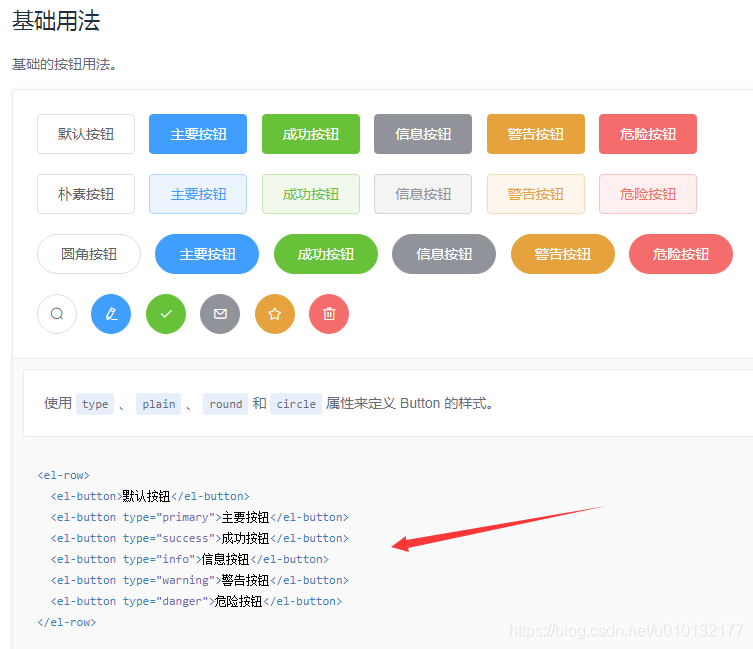
官方使用文档: https://element.eleme.cn/2.13/#/zh-CN/component/button
在文档中找到button组件使用方法,把想要的样式复制到想要的地方即可
src/parent.vue
【1】使用Element的组件
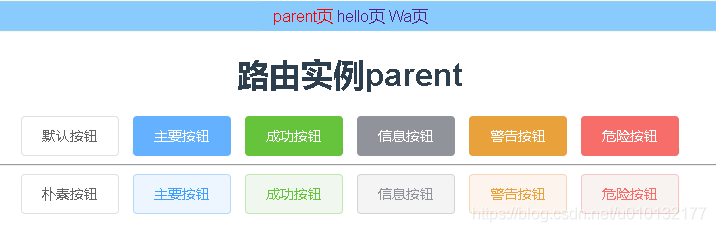
<template><div class="parent"><h1>路由实例parent</h1><!-- 【1】使用Element的组件 --><el-button>默认按钮</el-button><el-button type="primary">主要按钮</el-button><el-button type="success">成功按钮</el-button><el-button type="info">信息按钮</el-button><el-button type="warning">警告按钮</el-button><el-button type="danger">危险按钮</el-button><hr/><el-button plain>朴素按钮</el-button><el-button type="primary" plain>主要按钮</el-button><el-button type="success" plain>成功按钮</el-button><el-button type="info" plain>信息按钮</el-button><el-button type="warning" plain>警告按钮</el-button><el-button type="danger" plain>危险按钮</el-button></div>
</template><script>export default{name:'parent',components:{},data(){return{list:[] }},filters:{},directives:{},}
</script><style scoped>
</style>
效果:
2.2 走马灯(轮播)图片展示组件使用示例
src/main.js
【1】以下2个为引入走马灯必须组件
【2】以下2个为使用走马灯组件
import Vue from 'vue'
import App from './App'
import router from '@/router.js'//先引入自定义路由
import {Button,Select,Carousel,//【1】以下2个为引入走马灯必须组件CarouselItem,} from 'element-ui';Vue.use(Button)
Vue.use(Select)
Vue.use(Carousel)//【2】以下2个为使用走马灯必须组件
Vue.use(CarouselItem)Vue.config.productionTip = falsenew Vue({el: '#app',template: '<App/>',router,//把路由投到vue实例components: {App}
})
src/components/parent.vue
【0】定义一些图片
【1】使用Element的走马灯组件
【2】控制走马灯图片样式
<template><div class="parent"><h1>路由实例parent</h1><hr/><!-- 【1】使用Element的走马灯组件 --><el-carousel height="550px"><el-carousel-item v-for="(img,index) in imgs" :key="index"><img :src="img" /> <!-- 循环图片 --></el-carousel-item></el-carousel></div>
</template><script>export default{name:'parent',components:{},data(){return{imgs:[//【0】定义一些图片"http://www.wallcoo.com/nature/2010_Landscape_1920_Desktop_11/wallpapers/1600x1200/Moose%20Pond%20and%20Mount%20Pleasant%20in%20Autumn%2C%20Maine.jpg","https://cli.clewm.net/file/2015/01/20/81b71bc509d09368d4602a4b5b05d093.jpg","https://hbimg.huabanimg.com/a84ec58661bc95efb974e2eebea2b3fd880a8fb12870a-ksYmbV_fw658",]}},filters:{},directives:{},}
</script><style scoped>/* 【2】控制走马灯图片样式 */.el-carousel__item h3 {color: #475669;font-size: 14px;opacity: 0.75;line-height: 150px;margin: 0;}.el-carousel__item:nth-child(2n) {background-color: #99a9bf;}.el-carousel__item:nth-child(2n+1) {background-color: #d3dce6;}img {width:100%;}
</style>
效果:

三、Swiper(轮播专用组件)
官网:https://www.swiper.com.cn
Vue中使用:https://github.com/surmon-china/vue-awesome-swiper
官方API文档:https://www.swiper.com.cn/api/index.html
1.1 概述
- Swiper常用于移动端网站的内容触摸滑动
- Swiper是纯javascript打造的滑动特效插件,面向手机、平板电脑等移动终端。
- Swiper能实现触屏焦点图、触屏Tab切换、触屏多图切换等常用效果。
- Swiper开源、免费、稳定、使用简单、功能强大,是架构移动终端网站的重要选择!
1.2 安装Swiper
CDN
<link rel="stylesheet" href="path/to/swiper/dist/css/swiper.css"/>
<script type="text/javascript" src="path/to/swiper.js"></script>
<script type="text/javascript" src="path/to/vue.min.js"></script>
<script type="text/javascript" src="path/to/dist/vue-awesome-swiper.js"></script>
<script type="text/javascript">Vue.use(window.VueAwesomeSwiper)
</script>
NPM
首先要进入项目目录。
cnpm install vue-awesome-swiper --save
或
npm install vue-awesome-swiper --save
1.3 引入
1.3.1全局引入 (mount with global)
src/main.js
import Vue from 'vue'
import VueAwesomeSwiper from 'vue-awesome-swiper'// require styles
import 'swiper/dist/css/swiper.css'Vue.use(VueAwesomeSwiper, /* { default global options } */)
1.3.2组件内安装(局部引入)(mount with component)
src/components/parent.vue
// require styles
import 'swiper/dist/css/swiper.css'import { swiper, swiperSlide } from 'vue-awesome-swiper'export default {components: {swiper,swiperSlide}
}
1.3.3 ssr安装(mount with ssr)
// If used in nuxt.js/ssr, you should keep it only in browser build environment
if (process.browser) {const VueAwesomeSwiper = require('vue-awesome-swiper/dist/ssr')Vue.use(VueAwesomeSwiper)
}
1.4 定义插件相关参数(custom swiper plugin)
src/main.js
import Swiper from 'swiper'
Swiper.use({name: 'pluginName',params: {pluginSwitch: false,},on: {init() {if (!this.params.pluginSwitch) returnconsole.log('init')},// swiper callback...}
})
1.5 使用swiper
参数配置相关详见官方API文档:https://www.swiper.com.cn/api/index.html
src/main.js
import Vue from 'vue'
import App from './App'
import router from '@/router.js'//先引入自定义路由
//[1]引入swiper
import VueAwesomeSwiper from 'vue-awesome-swiper'
import 'swiper/dist/css/swiper.css'Vue.use(VueAwesomeSwiper)//[2]使用swiperVue.use(Carousel)//以下2个为使用走马灯必须组件
Vue.use(CarouselItem)Vue.config.productionTip = falsenew Vue({el: '#app',template: '<App/>',router,//把路由投到vue实例components: {App}
})
parent.vue
【0】-【3】
<template><div class="parent"><h1>路由实例parent</h1><hr/><!-- 【1】使用swiper的轮播组件 --><swiper :options="swiperOption" ref="mySwiper" @someSwiperEvent="callback"><!-- slides --><swiper-slide v-for="(img,i) in imgs" :key="i"><img :src="img"/></swiper-slide><!-- Optional controls --><div class="swiper-pagination"  slot="pagination"></div><!--分页器。如果放置在swiper-container外面,需要自定义样式。--><!-- <div class="swiper-button-prev" slot="button-prev"></div><div class="swiper-button-next" slot="button-next"></div><div class="swiper-scrollbar"   slot="scrollbar"></div> --></swiper></div>
</template><script>export default{name:'parent',components:{},data(){return{//【2】配置轮播相关参数都写在此对象内部swiperOption: {pagination: {el: '.swiper-pagination',},},imgs:[//【0】定义一些图片"https://hbimg.huabanimg.com/a84ec58661bc95efb974e2eebea2b3fd880a8fb12870a-ksYmbV_fw658","https://cli.clewm.net/file/2015/01/20/81b71bc509d09368d4602a4b5b05d093.jpg","https://hbimg.huabanimg.com/a84ec58661bc95efb974e2eebea2b3fd880a8fb12870a-ksYmbV_fw658",]}},filters:{},directives:{},}
</script><style scoped>/* 【3】控制轮播图样式 */
.swiper-container{--swiper-theme-color: #ff6600;--swiper-pagination-color: #00ff33;/* 两种都可以 */}
img {
width:800px;
}
</style>
效果: